BEAP Report Login Tutorial
(Please be patient, there are many graphics to load)
When your data is processed, we send you an email that reads:
Dear --------,
The BEAP data you submitted to us
has been processed and reports have been generated. Your reports can be obtained
from a secure location on the new BEAP
web site: http://www.rit.edu/~beap/
There are two sets of passwords (Level-1 Security,
and Level-2 Security):
Level-1 (lowercase only):
Username: abcdef
Password: 123456
Level-2 (lowercase only):
Username: prog
Password: 45E098
|
|
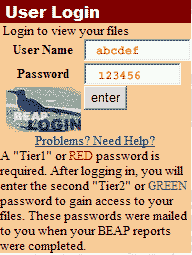
On the left hand side of the BEAP
home page (http://www.rit.edu/~beap/)
there is a login box (left)
Using the sample email (above), enter your Tier 1 or
red colored password and press the "Enter"
button.
Note: Your web browser will not show you the "password."
(It will likely show you ****** ) |
After Pressing "Enter", the following page
will show up.
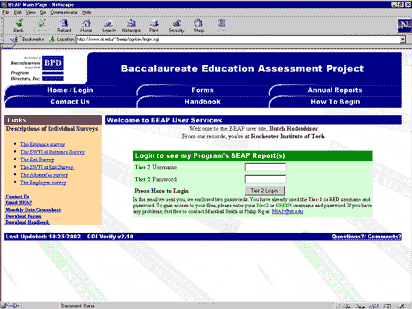
For security reasons, we protect your privacy by placing the reports behind
another login. On the this login screen, you need to enter the Tier2 or
green colored username and password. Using the
example email on the top of this page, the following would be
entered.
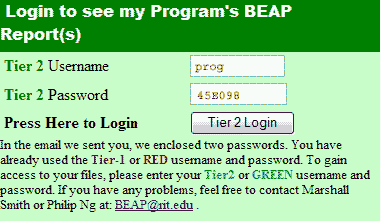
(note: Your browser will show ****** instead of your password)
After pressing "Tier 2 Login", the following page will allow you to view your
reports:
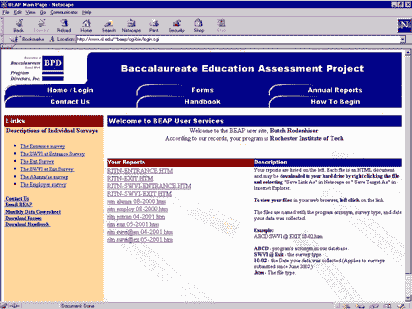
Clicking on any of the links under "Your Reports" will show you the report.
Reports will look like the following:
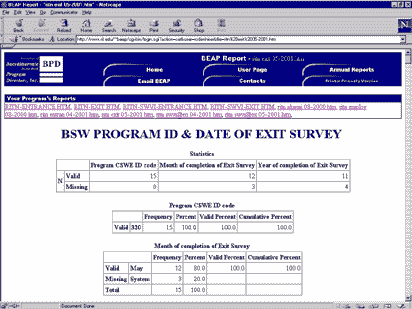
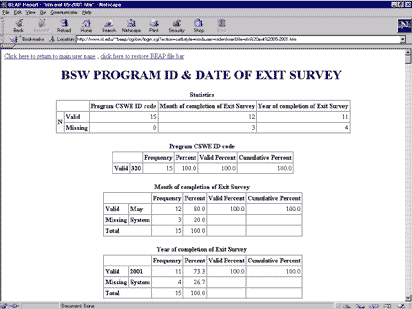
Clicking on the  button on the link bar generates a page that does not show the "link bar". This
page is shown below.
button on the link bar generates a page that does not show the "link bar". This
page is shown below.
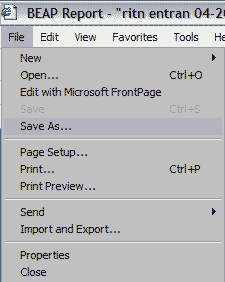
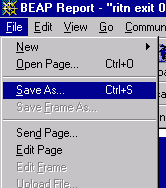
To save this document on to a disk for use in writing reports, you can use
your browser's Save As function. This is available under "file -> save as"
menu illustrated below in
Internet Explorer and Netscape Navigator.
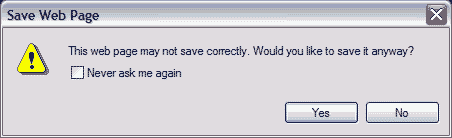
Internet Explorer users may see the following message. Click "YES".
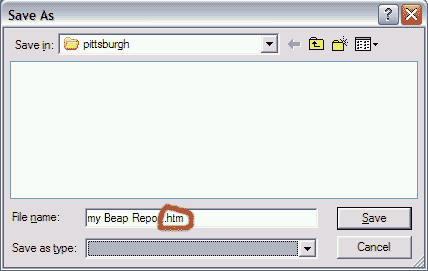
When the "save as" dialog appears, remember to give the file a name with an .htm
ending.
If you have any questions, feel free to send an email to us at
Beap@rit.edu